LightBlog

dimanche 31 janvier 2021

OnePlus Nord N100 unbrick tool is now available

OnePlus had a busy 2020. Apart from the regular offerings, the Chinese OEM also dipped its toes into the budget smartphone market with the OnePlus Nord N10 5G and the OnePlus Nord N100. The wallet-friendly Nord N100 might not be a powerhouse with its 4G-only Qualcomm Snapdragon 460 SoC, but it does share a few things in common with its siblings: a display with a 90Hz refresh rate, an unlockable bootloader for tinkering, and last but not least, the ability to boot into Qualcomm’s Emergency Download Mode (known as EDL) on user trigger. Well, who doesn’t know that the easy availability of EDL flashers (commonly referred to as “MsmDownloadTool”) is the reason why most OnePlus devices are, for the most part, unbrickable?

OnePlus Nord N100 XDA Forums

In case you have a OnePlus Nord N100 and cannot help but wonder why the unbrick tool is not yet available for your device, we are glad to inform you that your wait is over. Our favorite OnePlus aficionado Some_Random_Username has managed to mirror the device-specific MsmDownloadTool package and write a guide explaining what steps are needed to recover a bricked Nord N100 all by yourself.

Download MsmDownloadTool for the OnePlus Nord N100

If your OnePlus Nord N100 is already bricked, connecting the device to a USB port on a PC running Windows should expose it as “QDLOADER 9008” (or “QHUSB_BULK”, if the required driver isn’t properly installed) under Device Manager. To manually trigger EDL mode, hold down both volume up and volume down buttons, and plug the phone into your PC.

There are a few caveats that you need to be aware of prior to using the tool to unbrick your OnePlus Nord N100. The most important being that if you wish to cross-flash a different regional build of OxygenOS during the flashing process, this will not work as the low-level firmware is now tied to the internal device region ID. Also, since OnePlus utilizes VMProtect 3.0 as an obfuscation/anti-debugging measure while building the flasher, your antivirus might flag it as a potentially rogue piece of software. This is a typical case of false-positive, so just ignore the warning and add the tool to the exclusion list of the antivirus.

The post OnePlus Nord N100 unbrick tool is now available appeared first on xda-developers.


from xda-developers https://ift.tt/3oAHmy6
via IFTTT

Discussion: Has Samsung actually gotten good at software updates?

If you’ve been keeping watch these past few months, you’d have noticed that Samsung has been slaying it with its software updates. Besides working relentlessly to roll out the latest Android 11-based One UI 3.0 update to a wide range of flagships and flagship-killers, Samsung has also rewarded several mid-range devices with a similar treatment. Along with this commendable promptness, the brand also deserves our appreciation for updating mid-rangers that other brands often forget. So, in this edition of our weekly Discussion series, we ask you if you think Samsung is leading the way among Android manufacturers when it comes to software updates?

Here’s when your Samsung Galaxy phone may get the One UI 3.0 (Android 11) update

While Samsung appears to be at the top of its game, the condition was certainly much different a few years ago. Ironic to the brand’s global reputation, Samsung also earned the blame for delaying software updates, limiting key updates — such as Android version incremental updates — to its flagship devices, and offering a cluttered user experience with its TouchWiz user interface that was later refreshed as Samsung Experience. Samsung addressed complaints about the poor UX by majorly overhauling it with the first One UI update back in 2018. Not just that, the frequency and the availability of the latest updates have also improved majorly in the last few years.

Samsung started floating the first One UI 3.0 beta in October 2020 and subsequently started rolling out stable updates in December 2020, starting with the Galaxy S20 series on Verizon. Since then, a slew of devices has received the stable One UI 3.0 updates. The list includes:

Aside from these devices, Samsung’s latest Galaxy S21 series comes pre-loaded with One UI 3.1, which brings a few extra features such as the improved Google Home Device controls. The Galaxy Tab S7 has also been updated with One UI 3.1 with a set of features to enhance collaboration and productivity.

Despite this promptness, however, Samsung still lags in one area and that is support for Seamless Updates on Android. The feature was introduced with Android Nougat, and it allows new updates to install in the background while the phone is still being used. While updates may normally take only a few minutes to install, we cannot deny that saving that time is also a bonus, especially in an age where we are constantly dependent on our phones. Until Google does not make Seamless Updates mandatory for manufacturers, we can expect Samsung to its own sweet time.

Whether Seamless Updates improve the user experience or not is another topic for yet another Discussion. For now, we would like you to share your opinions on what you think about Samsung’s enthusiasm for updates. Comments your views below!

The post Discussion: Has Samsung actually gotten good at software updates? appeared first on xda-developers.


from xda-developers https://ift.tt/3pAr35E
via IFTTT

samedi 30 janvier 2021

How to (maybe) bypass SafetyNet hardware attestation on devices with an unlocked bootloader

Over the last couple of years, the challenge of bypassing SafetyNet Attestation has evolved from a simple cat and mouse game between Google and the modding community to a burgeoning battle chock full of obscure barriers. Thanks to the rise of hardware-backed attestation techniques, it is very difficult to bypass the boot image integrity verification routine and hide root access. Installing Magisk alone wouldn’t be sufficient to circumvent the latest SafetyNet update, especially on newer devices. This is exactly where the Universal SafetyNet Fix Magisk module comes in.

While legacy device owners, as well as custom ROM users, often utilize modules like MagiskHide Props Config to spoof the CTS profile to pass basic attestation, as long as the method in question relies on a valid combination of device and model names, build fingerprints, and security patch levels, there’s no guarantee that the root hiding trick will remain useful in the future. This is due to the fact that Google Play Services is starting to use hardware attestation for CTS profile validation in many cases, even when basic attestation is selected.

In more technical terms, even if the SafetyNet Attestation API response from GMS will report that basic attestation was used, hardware attestation is always used regardless of the reported state in order to enforce integrity. As a consequence, the existence of a bootloader unlocked state in the key attestation report results in SafetyNet Attestation failing to pass.

In case you have an Android device that has an unlocked bootloader (or locked using custom verified boot keys) and thus doesn’t pass hardware attestation, then the Universal SafetyNet Fix Magisk module may fix that. Created by Danny Lin AKA XDA Senior Member kdrag0n, the module works by taking advantage of the opportunistic nature of the hardware attestation routine. Quoting the developer:

… it (hardware attestation) falls back to basic attestation if key attestation fails to run — and prevent GMS from using key attestation at the framework level. This causes it to gracefully fall back to basic attestation and pass SafetyNet with an unlocked bootloader.
…
The “not implemented” error code from Keymaster is used to simulate the most realistic failure condition to evade detection, i.e. an old device that lacks support for key attestation.

The workaround is already available pre-integrated on the ProtonAOSP ROM from the same developer, which lets you pass SafetyNet without Magisk on fairly modern devices such as the Google Pixel 5. If you are a custom ROM maintainer and you wish to integrate this method with your build, you can do so by cherry-picking the necessary patches from this repository. On the other hand, the latest version of the ready-to-flash Magisk Module variant can be found here. Note that MagiskHide is still required if the target device is rooted.

Universal SafetyNet Fix: XDA Thread ||| GitHub Repo

The post How to (maybe) bypass SafetyNet hardware attestation on devices with an unlocked bootloader appeared first on xda-developers.


from xda-developers https://ift.tt/3j1lZVq
via IFTTT

OnePlus 6 and OnePlus 6T seeing work for mainline Linux kernel support

One of the perks of buying a OnePlus smartphone is the aftermarket development support. The company is generally known for its timely kernel source code releases (they have been slow at publishing sources a couple of times) and promotion of custom ROMs for EOL devices among other things, which makes it a fan favorite in the developer community. We often speak about devices outliving their generation by leaps and bounds, and now it looks like two OnePlus phones are about to achieve a similarly remarkable feat in terms of third-party development. It’s been nearly three years since the launch of the OnePlus 6 series, but if you still have a OnePlus 6 or a OnePlus 6T lying around, it may soon be possible to boot it with the mainline Linux kernel.

OnePlus 6 Forums ||| OnePlus 6T Forums

The one thing that might convince many users to finally lay their old device to rest is if unofficial software support ends for the foreseeable future — something that is almost a guarantee to happen with nearly every smartphone out there. However, there is an independent developer named Caleb Connolly, who has been working hard to include the OnePlus 6 and 6T in the mainline Linux kernel, which will surely help pave the way for the prolonged life of these devices. He has already taken the important step of successfully booting a postmarketOS instance on the device duo.

OnePlus 6 running postmarketOS Linux

With the OnePlus 6/6T being built atop the Qualcomm Snapdragon 845 platform, the upstreaming effort isn’t too convoluted but principally adding the appropriate device tree bits for the kernel. Thanks to the existing minimal mainline support for the platform, features like Bluetooth, Wi-Fi, and 3D Acceleration are already working at the current stage of development. What’s more interesting is that users can even dual-boot postmarketOS and Android on the OnePlus 6 and 6T using the custom installer created by the developer.

postmarketOS for the OnePlus 6 and the OnePlus 6T

Previously, there have been Windows 10 ARM bootstrapped for the OnePlus 6T by another independent developer, albeit it didn’t spark too much interest. The situation is entirely different now, as Caleb has been actively involved in the process of upstreaming kernel patches with hopes of improving the situation for those wanting to run Linux on the OnePlus 6 and 6T in the near future. We look forward to many years of continued development for these phones.

The post OnePlus 6 and OnePlus 6T seeing work for mainline Linux kernel support appeared first on xda-developers.


from xda-developers https://ift.tt/3pxGLON
via IFTTT

vendredi 29 janvier 2021

The ROG Phone 5 could have a dot matrix on the back for Aura Lighting

The ROG Phone from ASUS is the quintessential gaming phone. It has the most powerful chipset in an Android phone, shoulder buttons, an uninterrupted display, an active cooling attachment, and RGB lighting. The ROG logo that lights up on the back hasn’t changed in the 3 generations of ROG Phones that ASUS has released, but it looks like the Taiwanese brand will shake things up with the next phone in the series: the ROG Phone 5. (We don’t know exactly what it’ll be called, but there’s a chance ASUS will refrain from marketing it as the ROG Phone 4 given the popularity of the tetraphobia superstition in East Asian countries.)

Earlier this month, ASUS published a teaser on its Weibo page that hinted at the next ROG Phone’s upcoming launch. Given the ROG Phone 3 launched in July of 2020, the launch of the ROG Phone 5 seems to be happening a bit earlier than expected. A lot of devices are being released earlier than usual this year, though, so this isn’t too surprising. Shortly after ASUS teased the ROG Phone 5, a photo and later a brief hands-on video of the alleged device were posted to Weibo. The leaked image and video gave us a first look at the phone’s tiny secondary display on the back. This small display appears to support showing alerts for games and notifications for incoming calls.

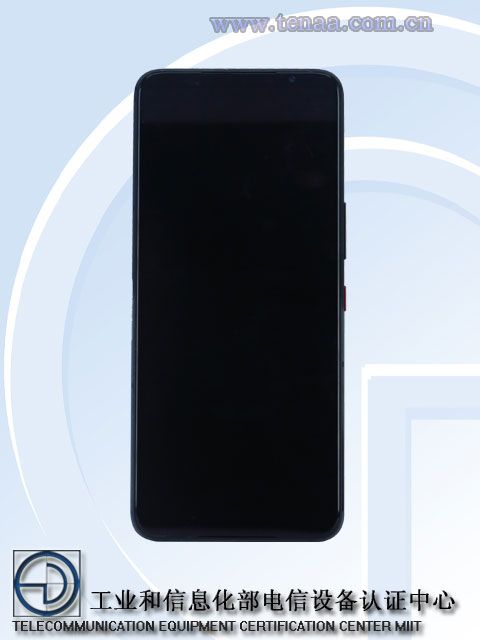
Now, a listing published on the Chinese certification site TENAA shows us the ROG Phone 5 in greater detail. On the back, we can see the number “05” (which suggests this is indeed the ROG Phone “5”), “REPUBLIC OF GAMERS”, “EST. 2006” (the year the brand was founded), and “TENCENT GAMES.” ASUS has typically offered a custom version of its ROG smartphones in China in collaboration with Tencent Games, so we’re likely looking at the Tencent version of the device here. The Tencent model typically compromises on a few internal hardware components in order to cut down on costs, but the overall design should be similar to the international model.

We can also see on the back that the area on the bottom-left is a dot matrix used for the phone’s Aura Lighting feature. The image of the rear submitted to TENAA shows the ROG logo lit up, but the lighting can likely be customized in the phone’s software. The dot matrix design on the back of the ROG Phone 5 reminds me of the Lightning Armor case that ASUS offers for the ROG Phone 3.

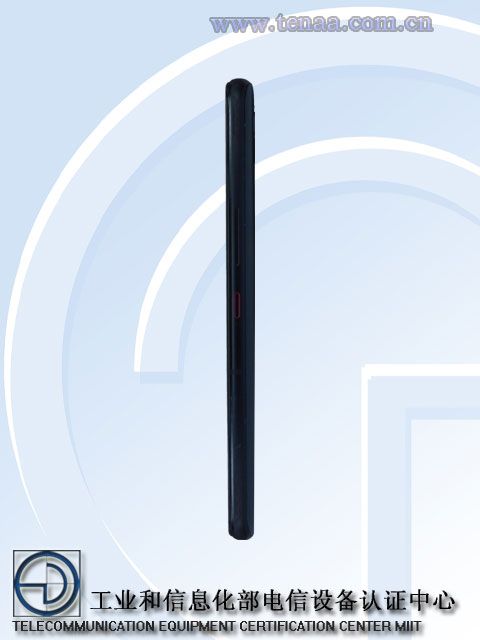
Other than the aforementioned changes to the rear design, we don’t see a lot of other design changes. The cameras look the same, the dual front-facing speakers are still there, the selfie camera on the right is still there, the display still seems to have no notch or hole-punch, and the ports still seem to be in the same location. The SIM card tray cover has a neat red color, but we’re not sure if that’s a Tencent-exclusive design change.

Not much else is known about the ROG Phone 5. According to the rest of the certification listing (H/T @_the_tech_guy), the device will have a 6.78-inch OLED display, a dual-cell battery design (2x 3000mAh batteries), run Android 11, and measure 172.834 x 77.252 x 10.29 mm in dimensions. A previous certification listing revealed the device will support 65W fast wired charging. We expect it’ll have Qualcomm’s flagship Snapdragon 888, ample amounts of RAM and storage, and other flagship-tier hardware.

The ROG Phone 3 was our favorite gaming phone of 2020. With competition from new entrants to the field like Lenovo and soon Redmi, the ROG Phone 5 will need to debut with exclusive gaming features that’ll justify its likely high price tag.

The post The ROG Phone 5 could have a dot matrix on the back for Aura Lighting appeared first on xda-developers.


from xda-developers https://ift.tt/36rMluF
via IFTTT

Xiaomi sets February 8th as the Mi 11 and MIUI 12.5 global launch date

After launching the Mi 11 in China, Xiaomi is gearing up to announce details about an international rollout of the device at an event on February 8. The company is also set to announce the global rollout of MIUI 12.5.

Xiaomi previously launched the Mi 11 in China toward the end of last year. The release was particularly notable because it was the first smartphone to launch with the new Qualcomm Snapdragon 888. The chip is expected to power many of this year’s flagship 5G devices, including the Galaxy S21 series in the U.S.

Xiaomi’s event will likely see the company reveal price and availability in specific countries. GSMArena notes that Spain has already been confirmed as a new destination for the Mi 11, but other EU countries will likely get the device as well.

Xiaomi Mi 11 buttons

If you haven’t had the opportunity to purchase the Mi 11 yet, you’re in for a treat. We got our hands on the device a few weeks ago and found it to be a gorgeous and powerful device. It’s reminiscent of the Mi 10 Ultra, but even more powerful thanks to the new Snapdragon 888 chip.

We say it’s similar to the Mi 10 Ultra because the Mi 11 features some of the same specs, like the gorgeous 2K 120Hz OLED screen and the “squircle” shaped camera module. The devices looks and feels very similar, which isn’t a bad thing at all. It will be very interesting to see how the Mi 11 is priced in other regions of the world. But if Xiaomi keeps it low, it could be one of the best values on the market.

Xiaomi Mi 11 Forums

Xiaomi will also share more launch details about MIUI 12.5, which is a fairly modest update over MIUI 12.0. One of the nice new features in the update will allow users to hide icons of pre-installed apps. This will make it easy for users to keep their home screens nice and minimal.

We’ll bring you all the details from Xiaomi’s February 8 event as it happens.

The post Xiaomi sets February 8th as the Mi 11 and MIUI 12.5 global launch date appeared first on xda-developers.


from xda-developers https://ift.tt/3adLNcR
via IFTTT

One UI 3.1 vs One UI 3.0: Here are the new features that Samsung added

Samsung has done a great job of updating its devices to One UI 3.0 based on Android 11 over the last few weeks. The software update has already rolled out to several Galaxy devices, and we expect Samsung to maintain its fast rollout schedule for its next software release — One UI 3.1. For the unaware, One UI 3.1, which is also based on Android 11, debuted with the Galaxy S21 series earlier this month, and it packs quite a few new features and changes. The update has already started rolling out to the Galaxy Tab S7 and Tab S7 Plus, and it should arrive on other Galaxy devices in the coming weeks. While you’re waiting for the update to roll out to your device, here’s a quick look at all the new software features and changes included in One UI 3.1.

Note: Not all of these features will be available on other Galaxy devices. To find out what features are headed to your device, be sure to thoroughly read the update changelog when the One UI 3.1 update arrives on your device! In addition, this post doesn’t include some of the new features that are exclusive to the Galaxy S21 lineup.


New features in One UI 3.1

Google Discover feed integration

One UI 3.1 Google Discover feed integration One UI 3.1 Google Discover feed integration

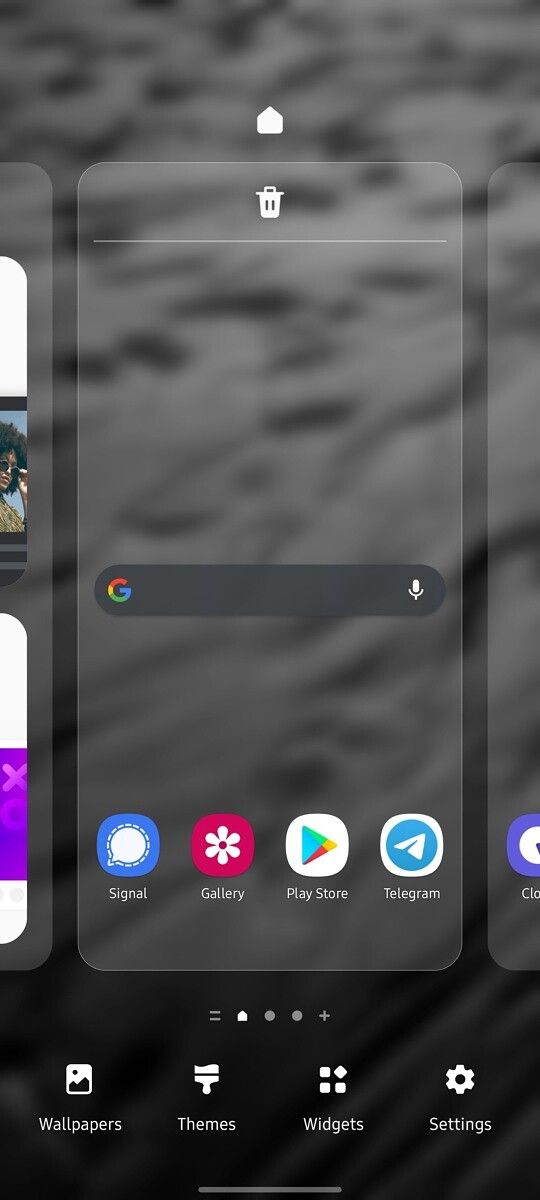
You can customize the stock launcher on One UI 3.1 to display the Google Discover feed on the minus-one screen. By default, the stock launcher is configured to show Samsung Free on the minus-one screen, but you can change that by following these steps:

  • Tap and hold on the home screen to open the customization settings.
  • Swipe all the way to the left until you see the following page
  • Tap on the Google Discover option

The Google Discover feed will then show up on the minus one screen. You can switch back to Samsung Free anytime you want by following the same steps. You can also turn off the feature altogether by tapping on the toggle in the top right corner.

Google Home Device Controls

Samsung One UI 3.1 device controls (1) Samsung One UI 3.1 device controls (2)

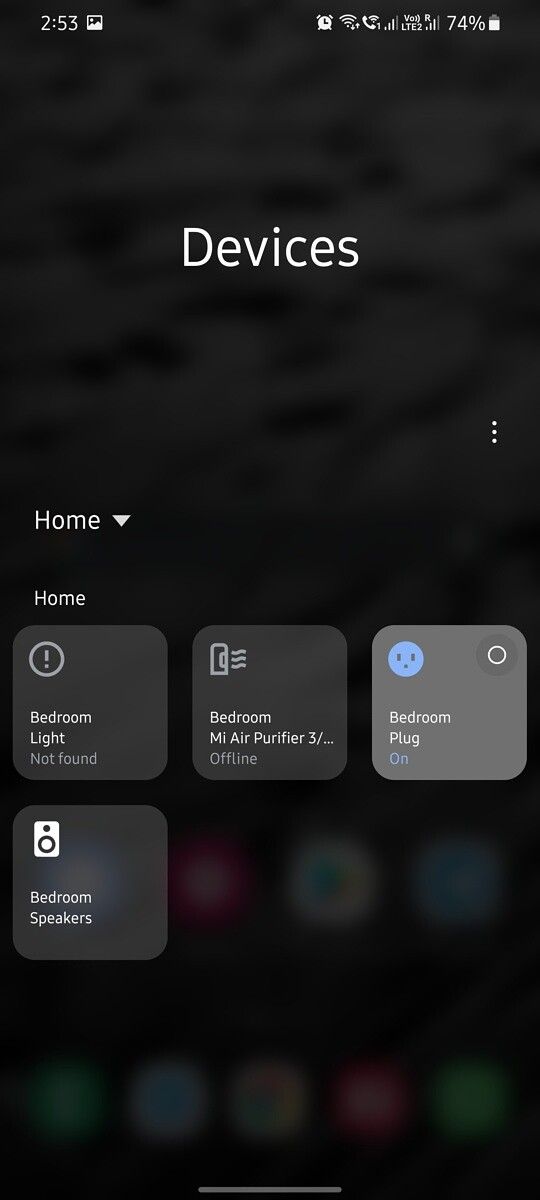
Samsung has integrated Android 11’s Device Controls feature into the ‘Devices’ option in quick settings. With this feature, you can add smart home devices from Google Home and other compatible smart home apps to this menu. The feature lets you easily control all your connected Google Home devices without opening up the Google Home app. You can follow this guide to access Google Home Devices controls on Galaxy devices running One UI 3.1

Google Duo integration

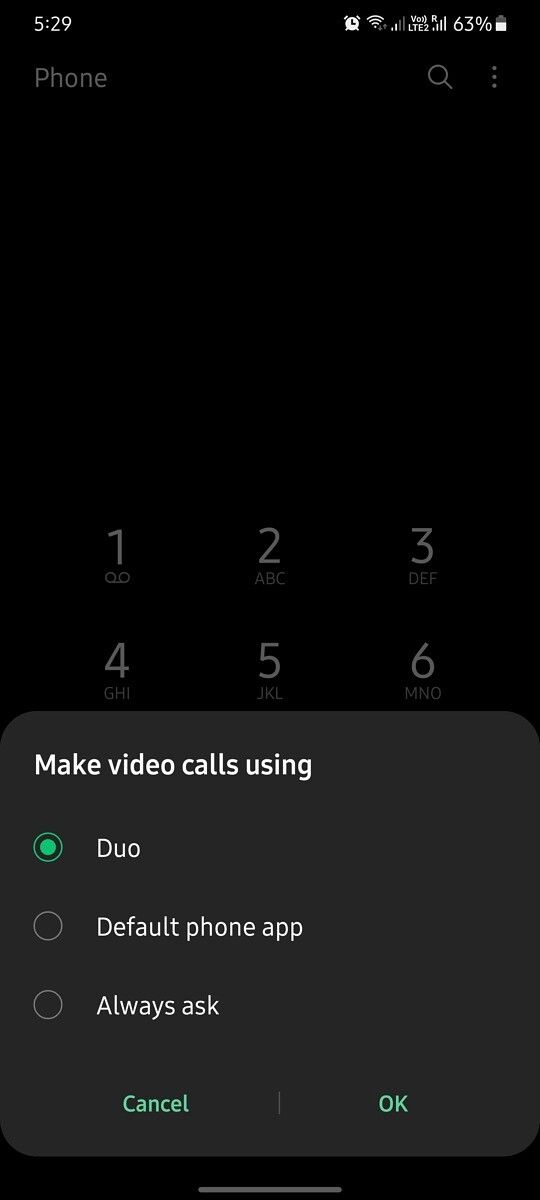
Samsung has worked closely with Google to offer better Google Duo integration in One UI 3.1. The company’s latest software release features seamless Google Duo integration in the stock dialer app. As you can see in the below screenshots, the three-dot menu in the stock dialer now has a new ‘Make video calls using’ option. Tapping on this option lets you select Google Duo as your preferred video calling service.

Google Duo integration in stock dialer app Google Duo integration in stock dialer app Google Duo integration in stock dialer app

Once you select Google Duo as the default video calling service, you’ll notice a new Google Duo button next to the call button on the dialer whenever you select a contact who’s available on Google Duo. You can tap on this button to instantly start a video call with the contact.

Along with seamless Google Duo integration in the stock dialer, the Galaxy S21 lineup also supports Google Duo’s auto-framing feature. The feature automatically keeps you front and center during video calls, eliminating the need to adjust the frame constantly. As of now, it isn’t clear if the feature will roll out to other Samsung devices with the One UI 3.1 update.

Video call effects

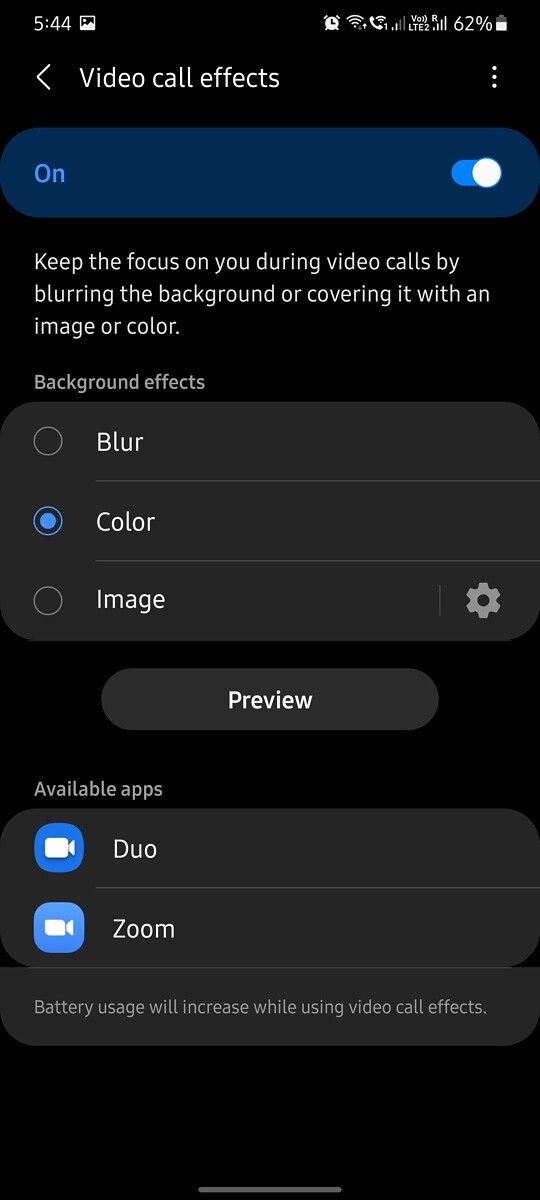
While we’re on the topic of video calling, let’s take a look at another cool new feature in One UI 3.1 — Video call effects. The feature can be found within the ‘Advanced features’ section in the device settings, and it lets you automatically add cool background effects during video calls.

One UI 3.1 video call effects One UI 3.1 video call effects

As you can see in the attached screenshots, the feature currently offers three background effects — Blur, Color, and Image. When enabled, the Blur option adds a background blur in the video calls, the Color option covers the background in a solid color, and the Image option covers the background with a custom image of your choice.

After you select one of the three options, you can tap on the ‘Preview’ button to see what the background will look like during video calls. The page also lists supported apps that will make use of the video call effects once the feature is enabled. For a demo of what this looks like, check out our dedicated article on the topic.

Remove GPS location data from photos & Private Share

During the Galaxy Unpacked event, Samsung talked about a new privacy-related feature for the Galaxy S21 lineup. The feature lets you easily remove location data from photos before you share them.

Remove location data from images

To do so, all you need to do is select a photo in the Gallery app, hit the share button, and then tap on the “Remove location data” option underneath the preview in the share sheet. Using this feature will strip the photo of location data like the latitude and longitude of where it was taken before it’s shared.

Private Share option in One UI 3.1 settings

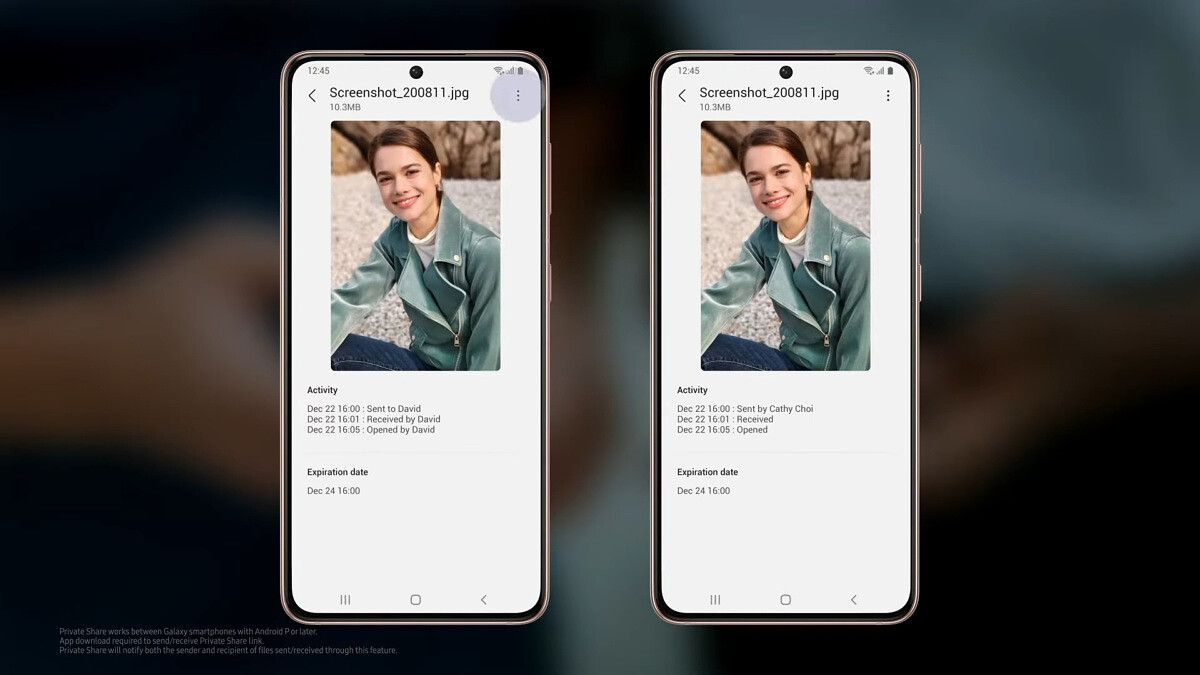
To give you more control over the content you share, Samsung has also launched a new Private Share app. You can use it to share any file, including images, videos, and documents, and choose when to revoke access to the file. However, you first need to enable the app from the device settings. You can do so by heading over to the Biometrics and security settings and tapping on the new Private Share option. This will open up a new window that will let you add the Private Share app to the app drawer.

Galaxy S21 Private Share Galaxy S21 Private Share Galaxy S21 Private Share

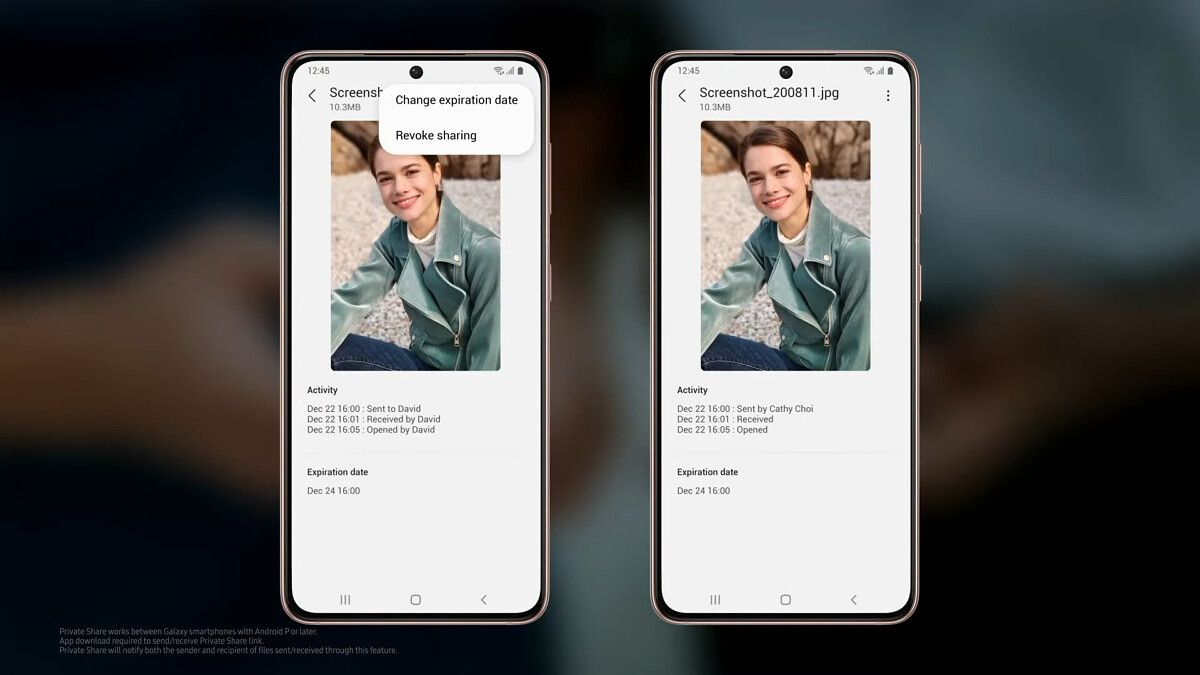
You can then open the app by tapping on the Private Share icon, tap on the ‘Share files’ button in the menu, and then select the recipient from the following screen. The app will then let you manually revoke access to the file at any time, or you can wait 2 days for the recipient’s access to automatically expire. The new Private Share app works on all Galaxy devices running Android 9 or later, but both the sender and the recipient need to have the app installed on their device to share files.

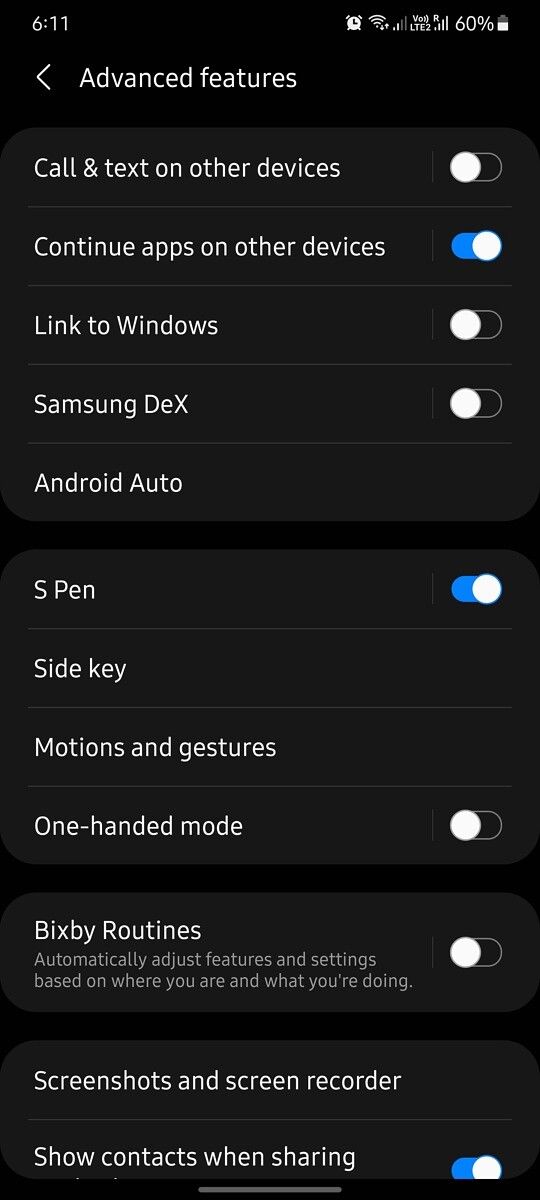
Continue apps on other devices

If you’re a part of the Samsung Galaxy ecosystem and use more than one Galaxy device regularly, then One UI 3.1 packs a cool new feature for you. The feature, called ‘Continue apps on other devices,’ can be found within the Advanced features section of the device setting. Once enabled, it lets you continue using an app on a different device that’s signed in to the same Samsung account.

One UI 3.1 continue apps on other devices One UI 3.1 continue apps on other devices

To continue using an app on a different device, all you need to do is open up the Recents screen on the other device and tap on the new icon. You can also use this feature to copy text, images, and more on one device and paste them on the other device. But you’ll need to have this feature enabled on both devices for it to work as expected. You’ll also need to turn on Bluetooth on both devices and ensure that they’re connected to the same Wi-Fi network.

It’s worth noting that this feature currently only works with the Samsung Internet and Samsung Notes apps. But Samsung may expand support to more apps in the near future.

Eye comfort shield

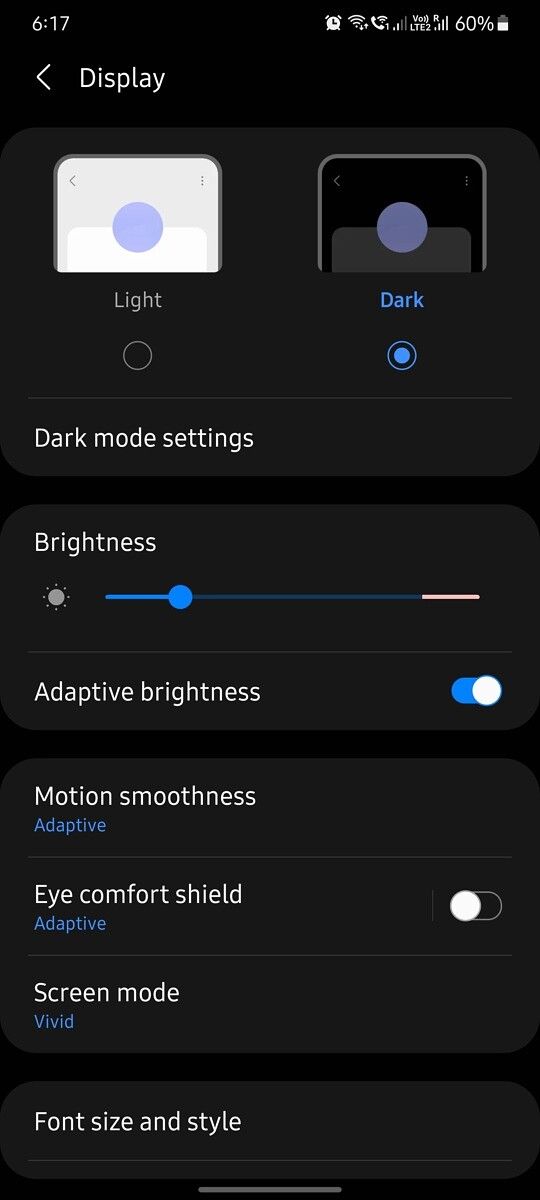
Eye comfort shield is a new feature in One UI 3.1 that builds upon the Blue Light Filter feature found on previous versions of the software. The feature can be found within the Display settings, and it lets you limit exposure to blue light by altering the display colors.

Eye comfort shield Eye comfort shield Eye comfort shield

As you can see in the attached screenshot, the feature includes two options — Adaptive and Custom. The Adaptive option automatically adjusts the colors based on the time of the day to limit blue light. While using this feature, you’ll notice minor color adjustments during the day and significantly warmer colors at night.

The Custom option lets you manually select the color temperature based on your preference. It also lets you set up a schedule to enable your custom color settings automatically. You can either have your custom color settings enabled all the time, vary from Sunrise to Sunset, or change at a specified time.

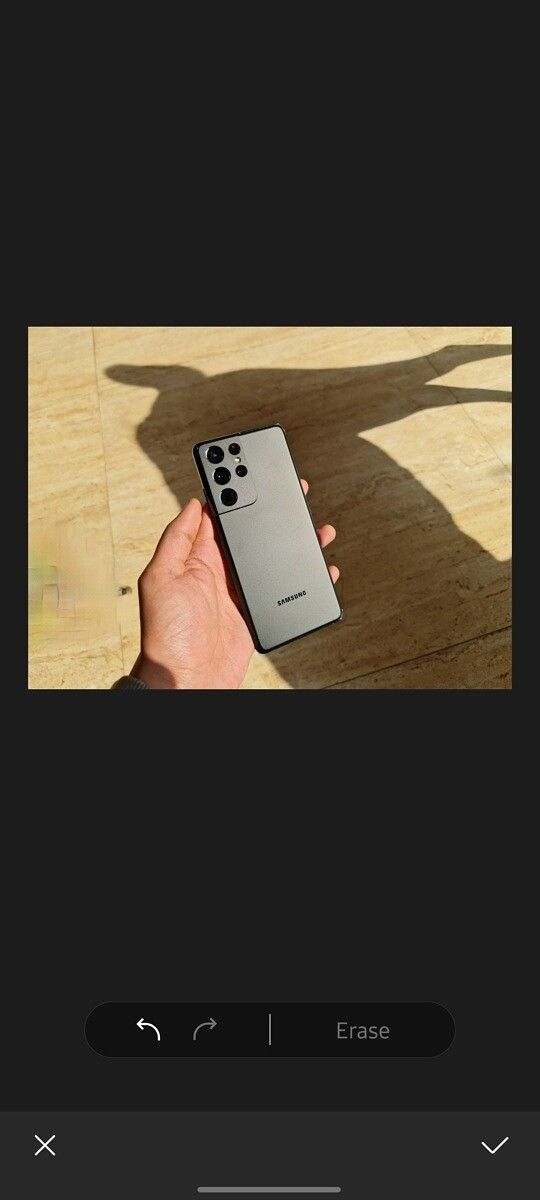
Object eraser

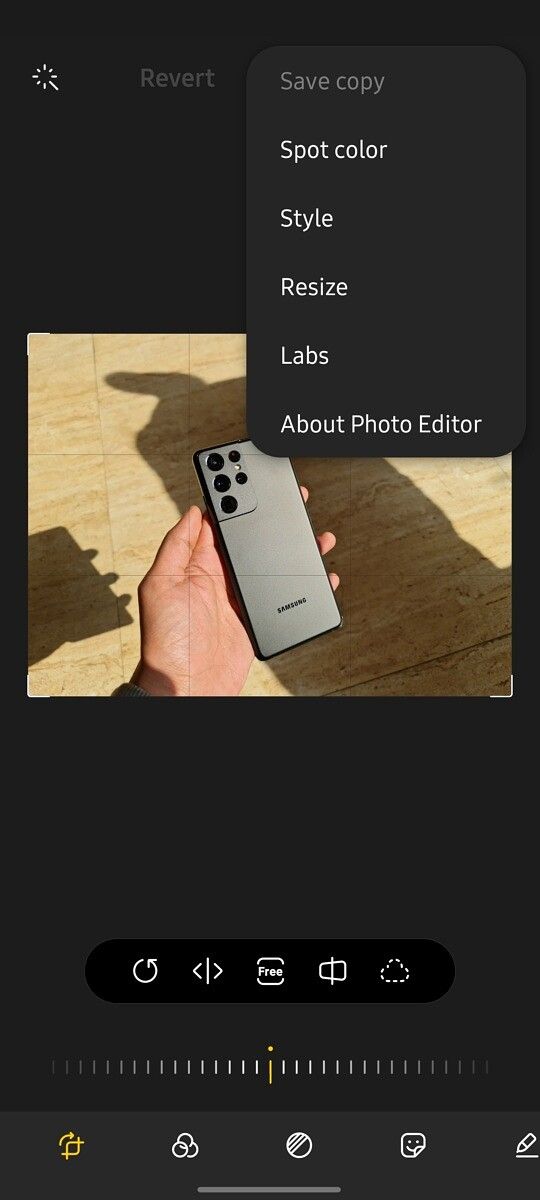
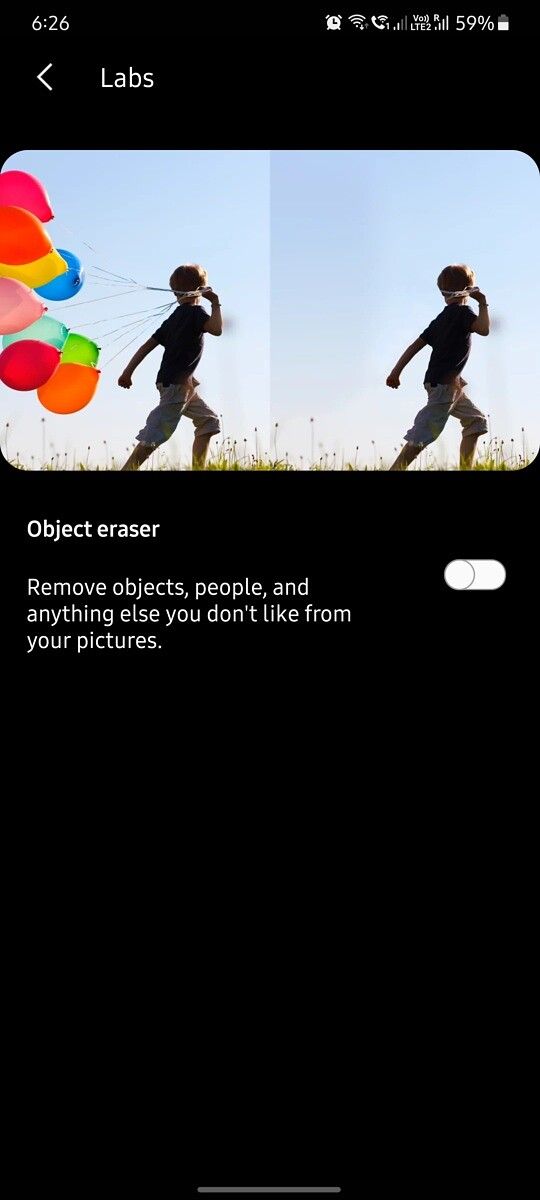
The Galaxy S21 devices also come with a new Object Eraser feature in the Gallery app. The feature lets you easily remove unwanted objects from your photos. However, the feature isn’t enabled by default. To enable it, you’ll need to tap on the three-dot menu button in the top right corner of the editor. In the drop-down menu, you’ll have to select the new Labs options and then tap on the toggle next to the ‘Object eraser’ feature on the following page.

One UI 3.1 Object Eraser One UI 3.1 Object Eraser One UI 3.1 Object Eraser One UI 3.1 Object Eraser One UI 3.1 Object Eraser

Once the feature is enabled, you’ll see a new icon in the image editor with a prompt highlighting its functionality. To remove an object from your image, tap on the new icon and then select the unwanted object on the following page. The feature will then highlight the selected object, and you can tap on the ‘Erase’ button to remove it. In my testing, I found that the feature does an ‘OK’ job of removing objects. Your mileage may vary.


New Camera features in One UI 3.1

Director’s view

One UI 3.1 Director's View

The new Director’s view feature on the Galaxy S21 lineup lets you capture videos from all the cameras on the device simultaneously. On the Galaxy S21 Ultra, this means that you get access to four different camera angles at the same time on the viewfinder, and you can switch between them seamlessly.

Vlogger view

The Vlogger view on Galaxy S21 devices lets you use the front and rear camera simultaneously. This is great for vloggers, as it lets them capture their reactions while recording something from the rear camera at the same time. It’s worth noting that while Samsung talked about the feature during the Galaxy Unpacked event, I wasn’t able to find it on my review unit.

Single Take 2.0

Single Take 2.0

Samsung has updated the Single Take feature with the launch of the Galaxy S21 lineup, and it now lets you capture more frames each second. On top of that, Single Take 2.0 also records slow-motion clips. Furthermore, the feature now also lets you choose the type of shots you wish to capture. You can tap on the new arrow icon in the top right corner and then select shots from the following menu. The feature offers 6 options to choose from — Filtered videos, Filtered photos, Speed effect clips, Portraits, Wide/cropped shots, and Highlight videos.

Focus enhancer

The camera app on the Galaxy S21 Ultra also includes a Focus enhancer option that pops up in the bottom right corner of the viewfinder while using the primary 108MP camera. The toggle only shows up when you’re trying to take a picture of a nearby object, and it ensures that the entire object remains in focus.

One UI 3.1 Focus enhancer

This is one major issue I had with the primary camera on the Galaxy Note 20 Ultra, and I’m glad Samsung has added this new feature to address that. I sincerely hope Samsung rolls it out to the Galaxy Note 20 Ultra and the Galaxy S20 Ultra with their One UI 3.1 update.


One UI 3.1 for Galaxy Tab tablets

Samsung recently began rolling out the Android 11-based One UI 3.1 update to the Galaxy Tab S7 and Tab S7 Plus. The update adds a plethora of new productivity features, including multi-device collaboration, Second Screen, and wireless keyboard sharing. You can read about these new productivity features in more detail here.


Other minor changes in One UI 3.1

Along with all the features mentioned above, Samsung has made some other minor changes in One UI 3.1. Here’s a quick rundown of all the changes I managed to find on my Galaxy S21 Ultra:

  • The device now offers a larger selection of vibration patterns for calls.
  • The Sounds and vibration settings now also include an option to select vibration patterns for notifications.
  • You can now access Home Screen settings from within the Settings app.
  • Samsung has added a new option in the Privacy settings that lets you turn off customization services (ads/personalized recommendations) while using mobile data.
  • One UI 3.1 includes a couple of additional custom call backgrounds,
  • The Clock app now includes new Bedtime & wake up alarms.
  •  Live focus and Live Focus video in the camera app have been renamed to Portrait and Portrait video.
  • Samsung Free is now available as a standalone app.

Which of these One UI 3.1 features are you most excited about? Share your thoughts in the comments below!

    Samsung Galaxy S21 Ultra
    The Samsung Galaxy S21 Ultra is the ultimate overkill in the new 2021 flagship series, packing in a flagship SoC, a premium build, a great display, and an amazing camera setup, as well as all the extras expected on a premium flagship.

The post One UI 3.1 vs One UI 3.0: Here are the new features that Samsung added appeared first on xda-developers.


from xda-developers https://ift.tt/3comlnB
via IFTTT